
PowerShell IT Management Dashboard
raiz-toff / POWERSHELL_SCRIPTING
Overview
Section titled “Overview”This is a Windows Forms GUI built in PowerShell — a full IT Management Dashboard that runs on a Domain Controller. It covers 10 admin tasks: AD user management, password expiry alerts, patch auditing, backups, system health checks, scheduled tasks, and more.
Before the dashboard loads, a credential wrapper runs first. It prompts for admin credentials, tests them against a privileged path, and only launches the main GUI if the check passes.
Dashboard Tabs
Section titled “Dashboard Tabs”- User Account Management — create, enable, disable, search AD accounts
- Password Expiration Alerts — flag accounts close to expiry
- Time Tracking Reminders — session usage and alerts
- Patch Management — query local hotfixes and updates
- Password Reset — change user passwords securely
- System Health Checks — live CPU, RAM, disk, and service status
- Backup Automation — scheduled and on-demand folder backups
- Reporting & Logging — search and review application logs
- Phonetic Spelling — convert names/usernames to NATO phonetic alphabet
- Scheduled Tasks — list, create, and delete local task scheduler entries
Credential Wrapper
Section titled “Credential Wrapper”The entry point script handles authentication before anything else loads.
- Prompts for credentials via
Get-Credential - Spawns a background process under those credentials to test a privileged path
- Catches auth failures and logs them
- If the exit code is
0, loads the main dashboard
# Key snippet for Secure Credentials Retrieval$Credentials = Get-Credential -Message "Enter administrator credentials to access the script."
# Key snippet for Verification execution$Result = Start-Process -FilePath "powershell.exe" -ArgumentList "-Command", $TestCommand -Credential $Credentials -NoNewWindow -Wait -PassThru
Screenshots
Section titled “Screenshots”Authentication Prompt
Section titled “Authentication Prompt”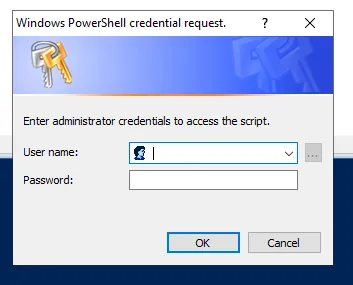
Dashboard
Section titled “Dashboard”| Component | Screenshot |
|---|---|
| Main Dashboard | 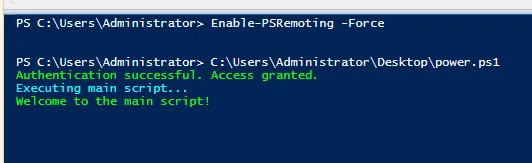 |
| AD Users & Search | 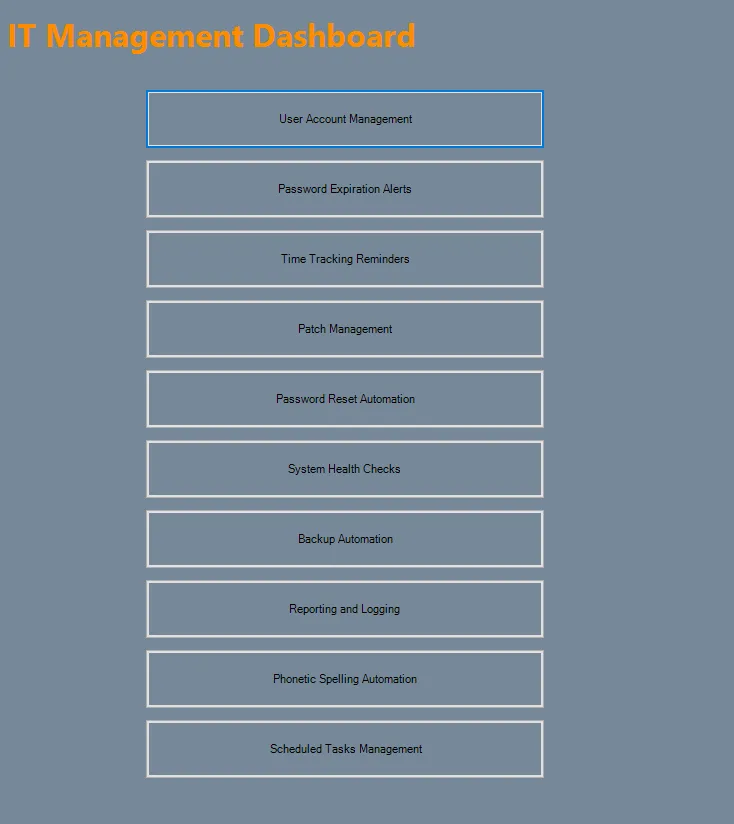 |
| Stats Console | 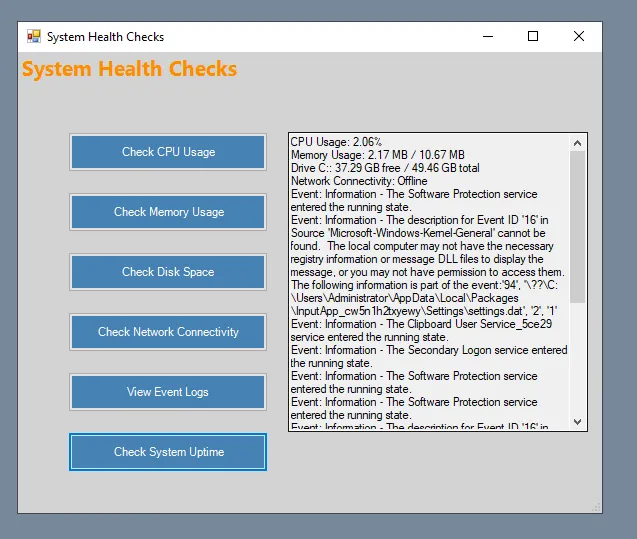 |
| Account Controls | 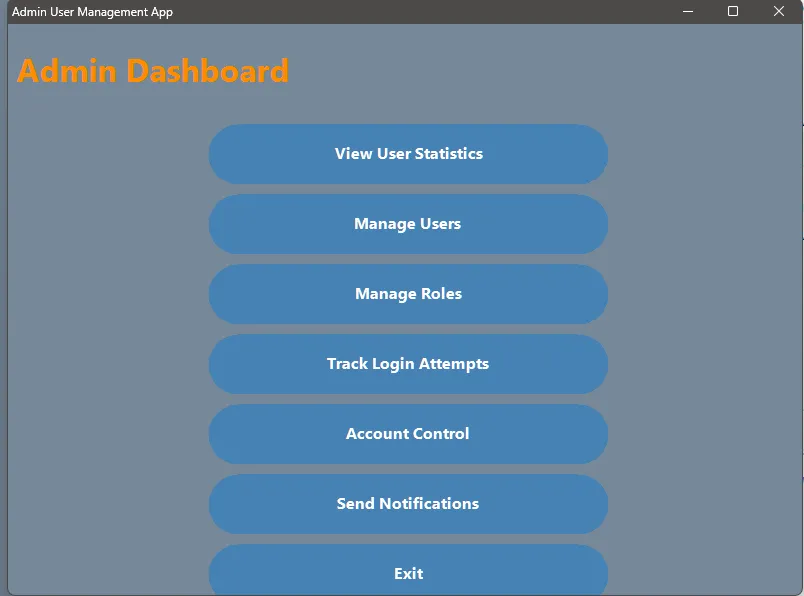 |
| Alerts & Logging | 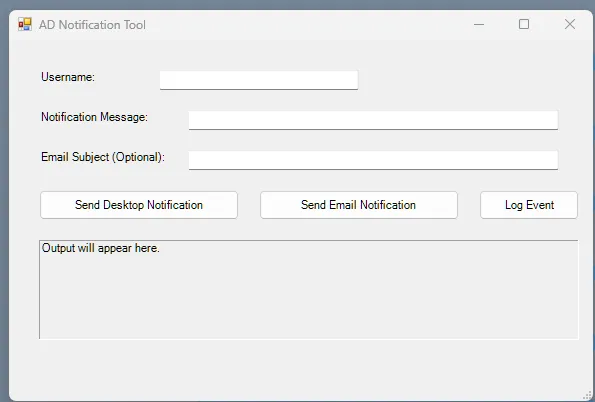 |
Requirements
Section titled “Requirements”- PowerShell 5.1 or later
- Elevated session (Run as Administrator)
ActiveDirectorymodule installed on the Domain Controller- Don’t hardcode credentials — use
Get-Credentialor a vault
Source Code
Section titled “Source Code”The wrapper entry point — handles credential prompting and verification before loading the dashboard:
# Wrapper logic to secure the IT Management DashboardFunction Verify-AdminCredentials {    # Prompt for credentials    $credentials = Get-Credential -Message "Enter administrator credentials to access the script."
    if (-not $credentials) {        Write-Host "No credentials entered. Exiting script." -ForegroundColor Red        return    }
    # Define a test command to validate credentials    $testCommand = {        Test-Path "C:\Windows\System32"    }
    try {        # Run a test command using the entered credentials        $result = Start-Process -FilePath "powershell.exe" -ArgumentList "-Command", $testCommand -Credential $credentials -NoNewWindow -Wait -PassThru
        if ($result.ExitCode -eq 0) {            Write-Host "Authentication successful. Access granted." -ForegroundColor Green            # Call the external script file main.ps1            & "C:\Users\Administrator\Desktop\main.ps1"        } else {            Write-Host "Authentication failed. Access denied." -ForegroundColor Red        }    } catch {        Write-Host "An error occurred during authentication: $_" -ForegroundColor Red    }}
# Call the Verify-AdminCredentials functionVerify-AdminCredentials
To browse, clone, or download the full dashboard (5,600+ lines):
Check the repo