Group Policy Management & GPO Creation
Conceptual Overview
Section titled “Conceptual Overview”1. What is Group Policy?
Section titled “1. What is Group Policy?”Group Policy is a feature in Microsoft Windows NT family of operating systems that allows network administrators to manage and configure operating systems, applications, and users’ settings in a centralized manner within an Active Directory (AD) environment.
Group Policy helps in applying specific configurations or security baselines to a group of users or computers efficiently, rather than configuring each machine manually. These policies can range from security settings (such as password complexity requirements, account lockout policies, and firewall configurations) to user interface customizations (such as desktop backgrounds, software installations, or restricting access to specific system tools).
2. Lab Objective
Section titled “2. Lab Objective”The objective of this lab is to create and enforce a Group Policy Object (GPO) to restrict specific user actions on client computers.
- Goal: Create a GPO, configure user administrative templates to remove system shutdown/restart options, link the GPO to the
CST170Organizational Unit, and verify the policy enforcement on a client workstation.
Materials & Prerequisites
Section titled “Materials & Prerequisites”- Domain Controller: Windows Server configured with Active Directory Domain Services (AD DS) and Group Policy Management Console (GPMC) installed.
- Client Machine: Windows 10 client host joined to the
rajkumar.localdomain. - Target Container: An active Organizational Unit (OU) (e.g.,
CST170) containing the test user accounts.
Step-by-Step GPO Implementation Walkthrough
Section titled “Step-by-Step GPO Implementation Walkthrough”Summary of GPO Procedure
Section titled “Summary of GPO Procedure”| Step | Action | Description |
|---|---|---|
| 1 | Open GPMC | Launch the Group Policy Management Console in Server Manager. |
| 2 | Locate OU Container | Navigate to the target Organizational Unit (CST170). |
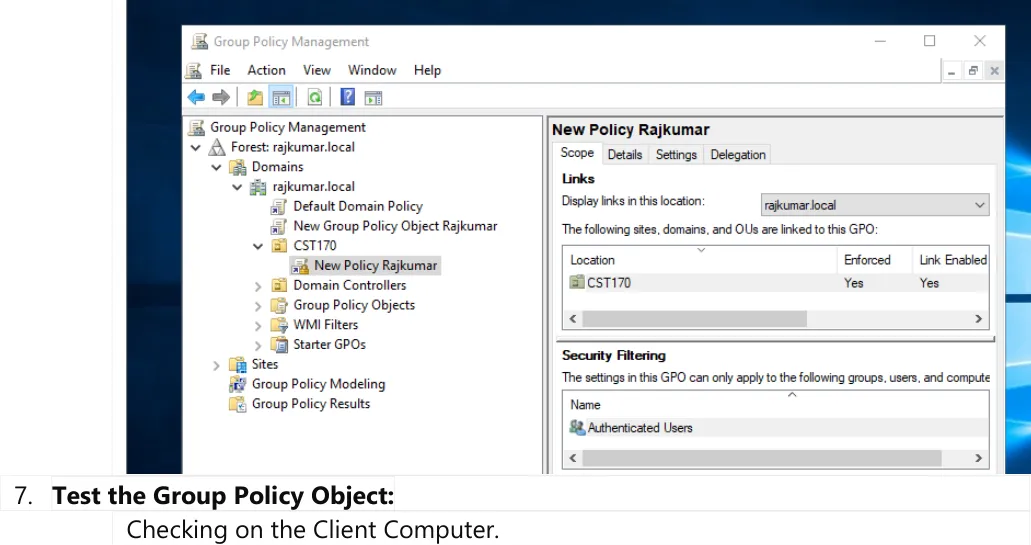
| 3 | Create & Link GPO | Create a new GPO (“New Policy Rajkumar”) linked directly to the OU. |
| 4 | Open GPO Editor | Open the Group Policy Management Editor for the new GPO. |
| 5 | Configure Settings | Enable the “Remove and prevent access to Shut Down/Restart” administrative template. |
| 6 | Verify Link | Confirm that the GPO link is active and enabled for the OU. |
| 7 | Client Verification | Log in to the client workstation, update policy, and verify the missing options. |
Phase 1: GPO Creation & Linking
Section titled “Phase 1: GPO Creation & Linking”Step 1: Open Group Policy Management Console (GPMC)
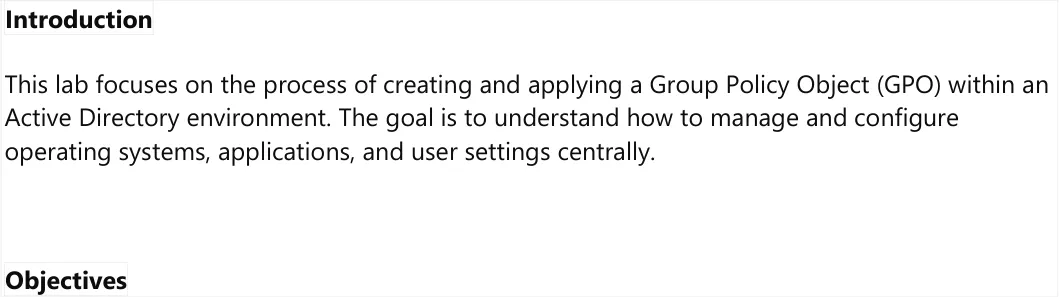
Section titled “Step 1: Open Group Policy Management Console (GPMC)”Log in to the Domain Controller. Open Server Manager, click on Tools in the top-right corner, and select Group Policy Management to open the management console.
Step 2: Locate the Target Container
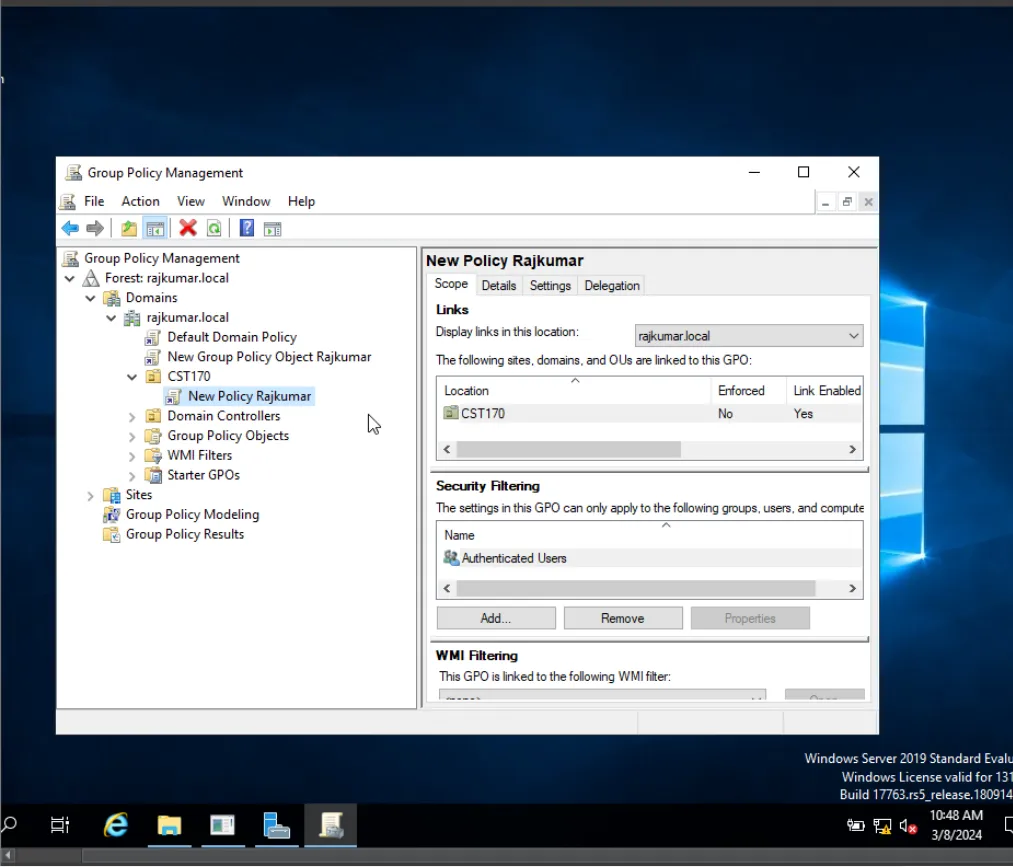
Section titled “Step 2: Locate the Target Container”Expand the console tree: Forest: rajkumar.local > Domains > rajkumar.local. Locate the Organizational Unit where the policy will be applied (e.g., CST170).
Step 3: Create a GPO and Link It Here
Section titled “Step 3: Create a GPO and Link It Here”Right-click on the CST170 OU and select Create a GPO in this domain, and Link it here…. In the dialog box, name the GPO (e.g., New Policy Rajkumar) and click OK.
Phase 2: Policy Settings Configuration
Section titled “Phase 2: Policy Settings Configuration”Step 4: Open Group Policy Management Editor (GPME)
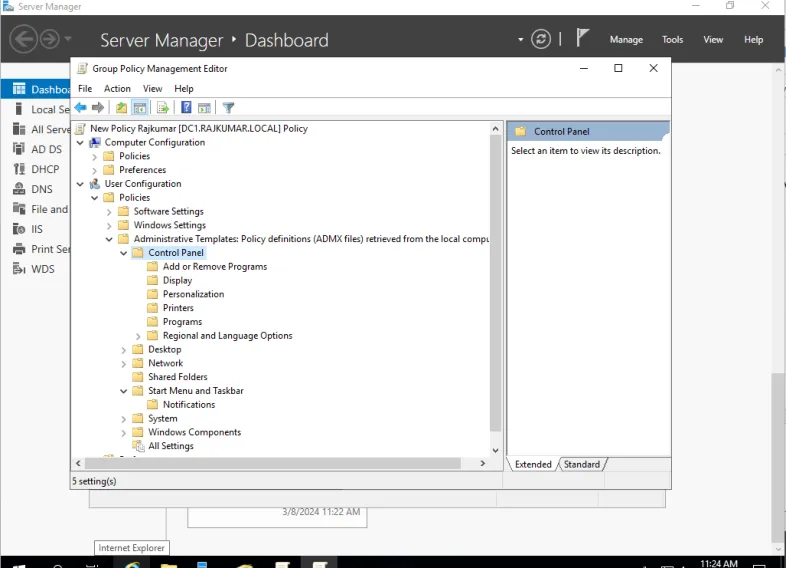
Section titled “Step 4: Open Group Policy Management Editor (GPME)”Right-click the newly created GPO under the CST170 OU and select Edit to open the Group Policy Management Editor.
Step 5: Configure the Administrative Template
Section titled “Step 5: Configure the Administrative Template”In the GPME console, navigate to the following path under User Configuration:
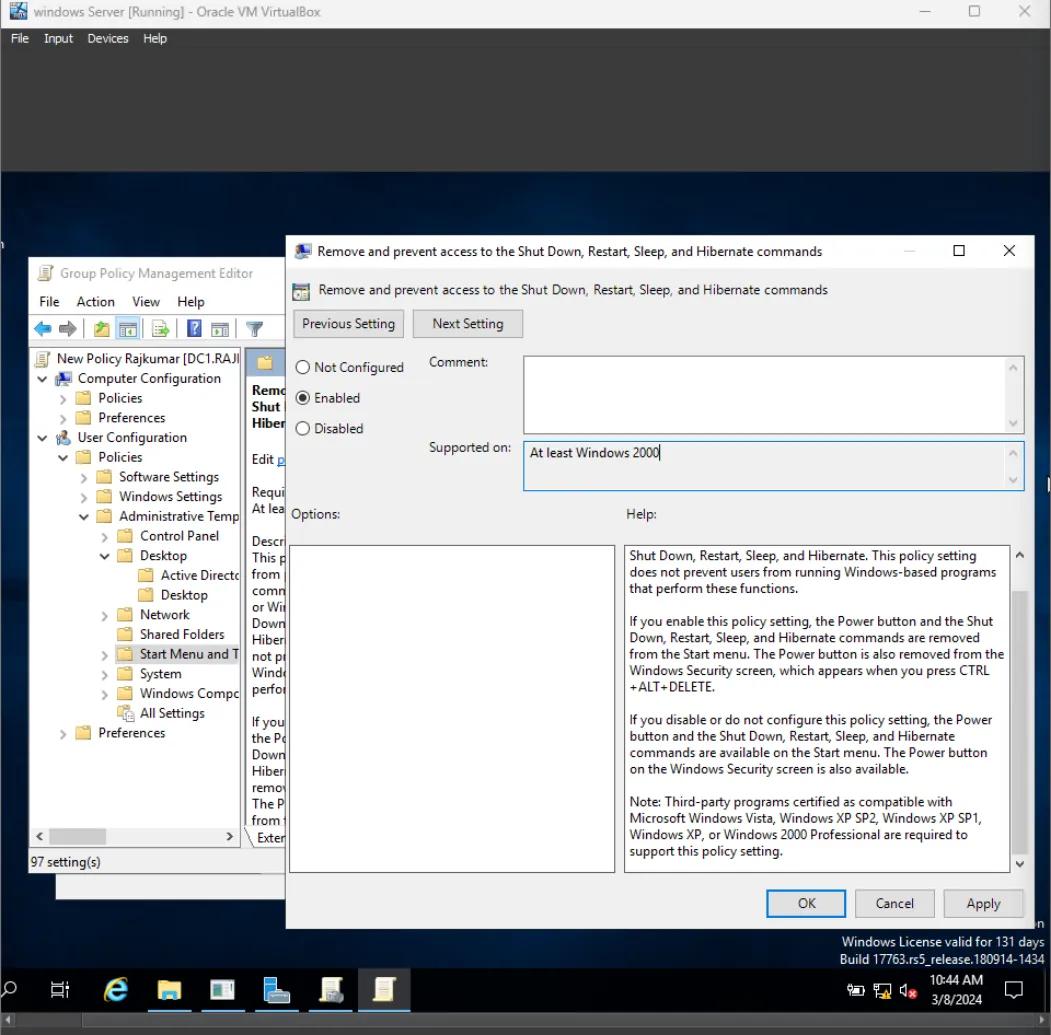
User Configuration > Policies > Administrative Templates > Start Menu and Taskbar
Locate the setting: Remove and prevent access to the Shut Down, Restart, Sleep, and Hibernate commands. Double-click it, change the setting to Enabled, and click OK.
Phase 3: Enforcing & Testing the Policy
Section titled “Phase 3: Enforcing & Testing the Policy”Step 6: Verify and Enforce GPO
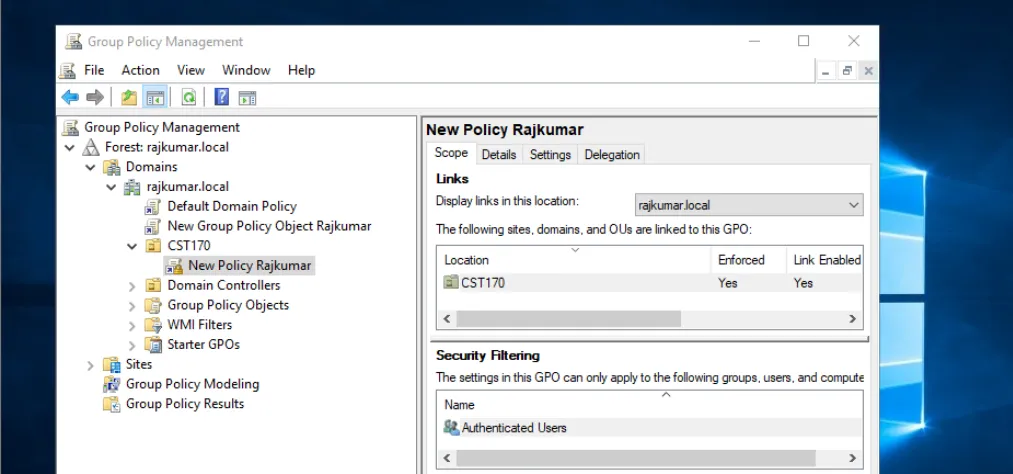
Section titled “Step 6: Verify and Enforce GPO”Go back to the Group Policy Management Console. Ensure that the GPO is linked to the CST170 OU and its status shows Link Enabled. If needed, right-click the link and select Enforced to prevent lower-level containers from overriding the setting.
Step 7: Test Policy on the Client Workstation
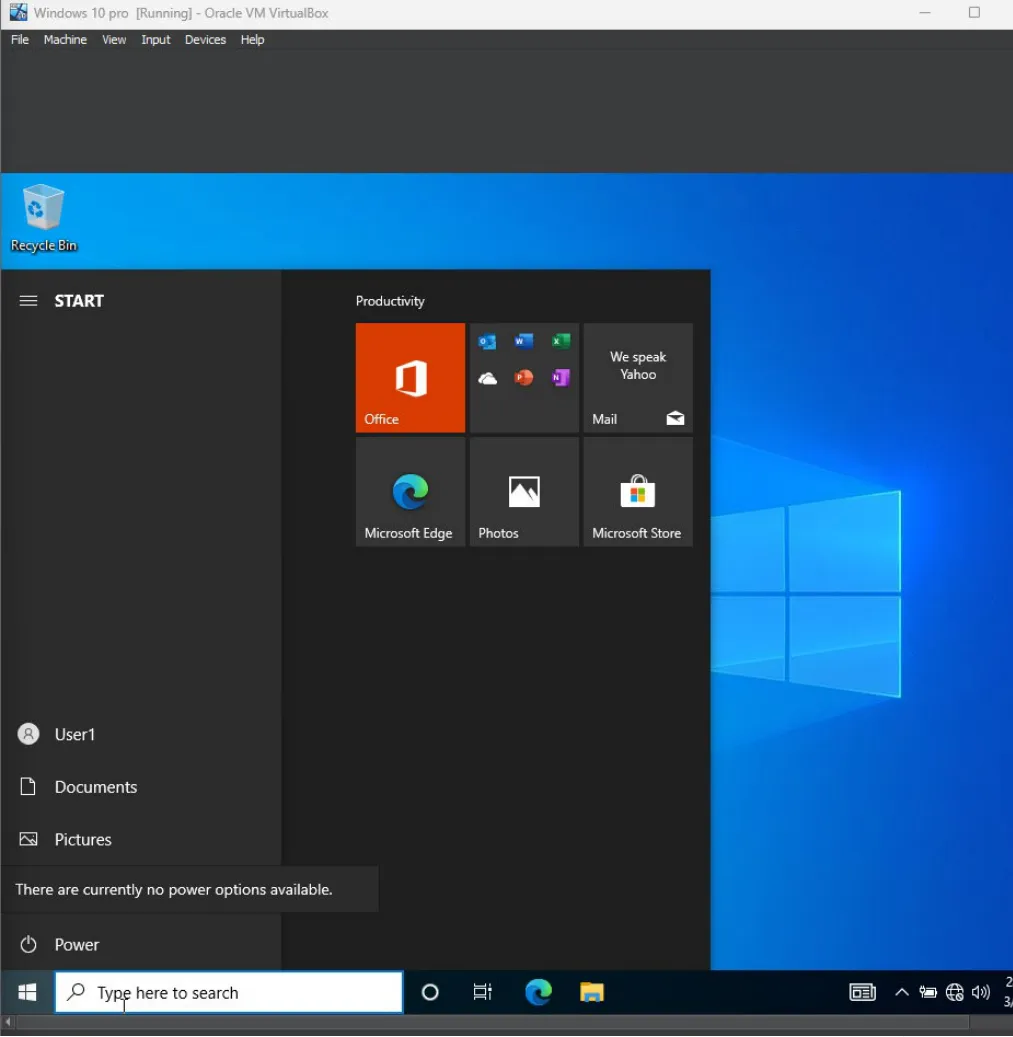
Section titled “Step 7: Test Policy on the Client Workstation”- Log in to the Windows 10 client host using a domain user account that resides in the
CST170OU. - Open Command Prompt and run
gpupdate /forceto immediately pull the new GPO configurations from the Domain Controller. - Open the Start Menu, click the Power icon, and verify that the power options (Shut Down, Restart, Sleep, Hibernate) have been removed, displaying the message “There are currently no power options available.”